Advanced Configuration
This guide covers creating and managing Deck Prompts and Slide Styles in Databricks Tellr.
Overview
Advanced configuration lets you customize:
- Deck Prompts - Templates that guide how slides are structured and what content to include
- Slide Styles - CSS styling that controls the visual appearance of generated slides
Prerequisites
- Access to Databricks Tellr
- Understanding of your presentation requirements
- (For styles) Basic CSS knowledge
Part 1: Deck Prompts
Deck prompts are instruction templates that guide the AI when generating slides.
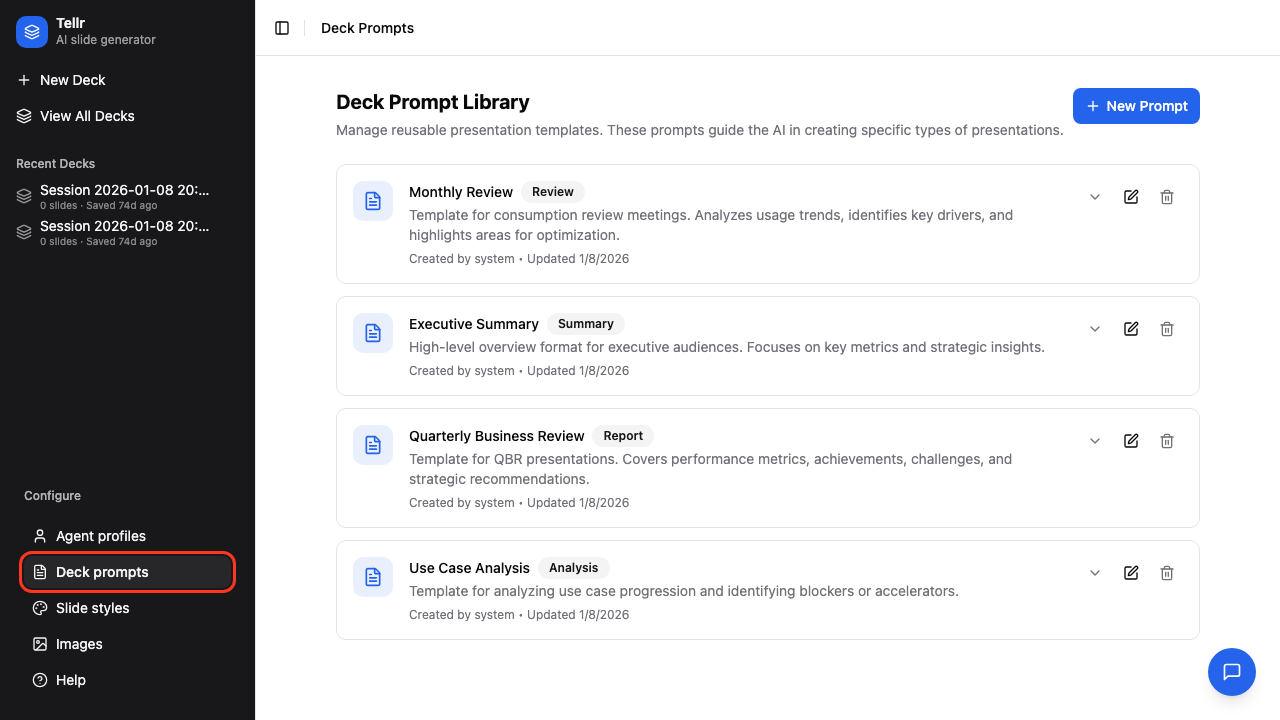
Step 01: Navigate to Deck Prompts
Click "Deck Prompts" in the navigation bar.
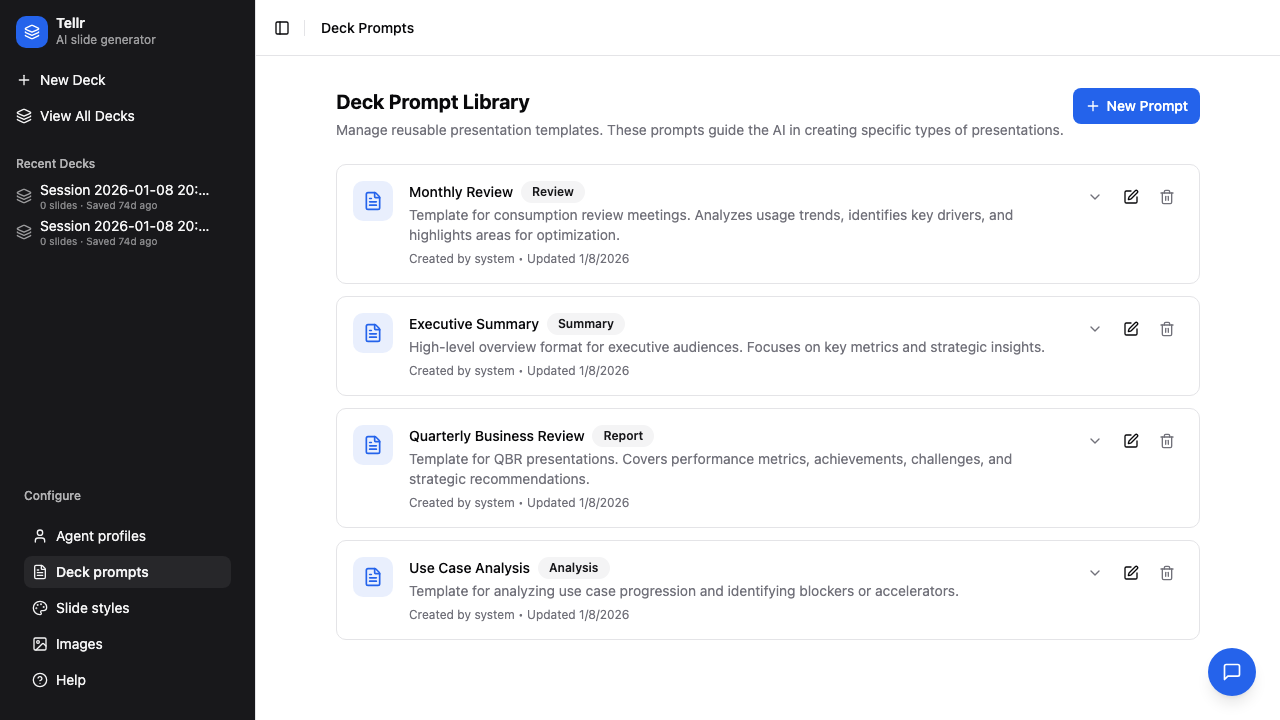
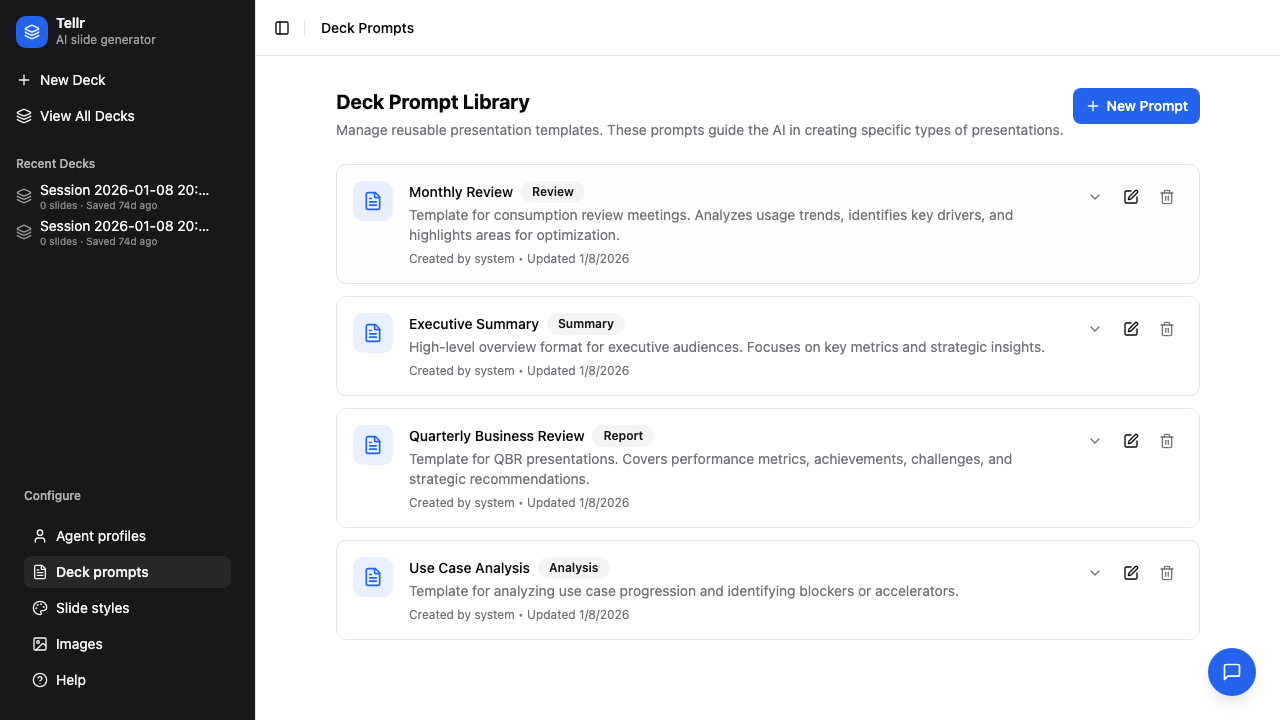
Step 02: Browse the Library
View existing prompts organized by category.
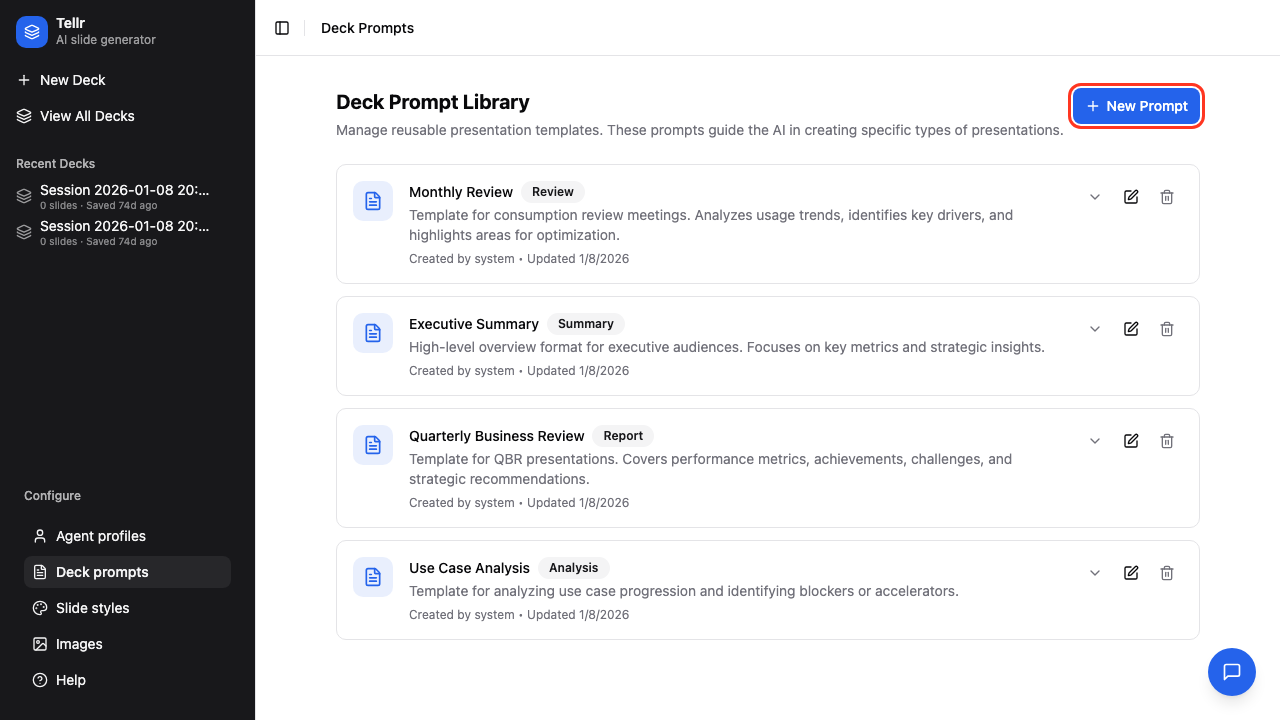
Step 03: Create New Prompt
Click "+ Create Prompt" to add a custom prompt.
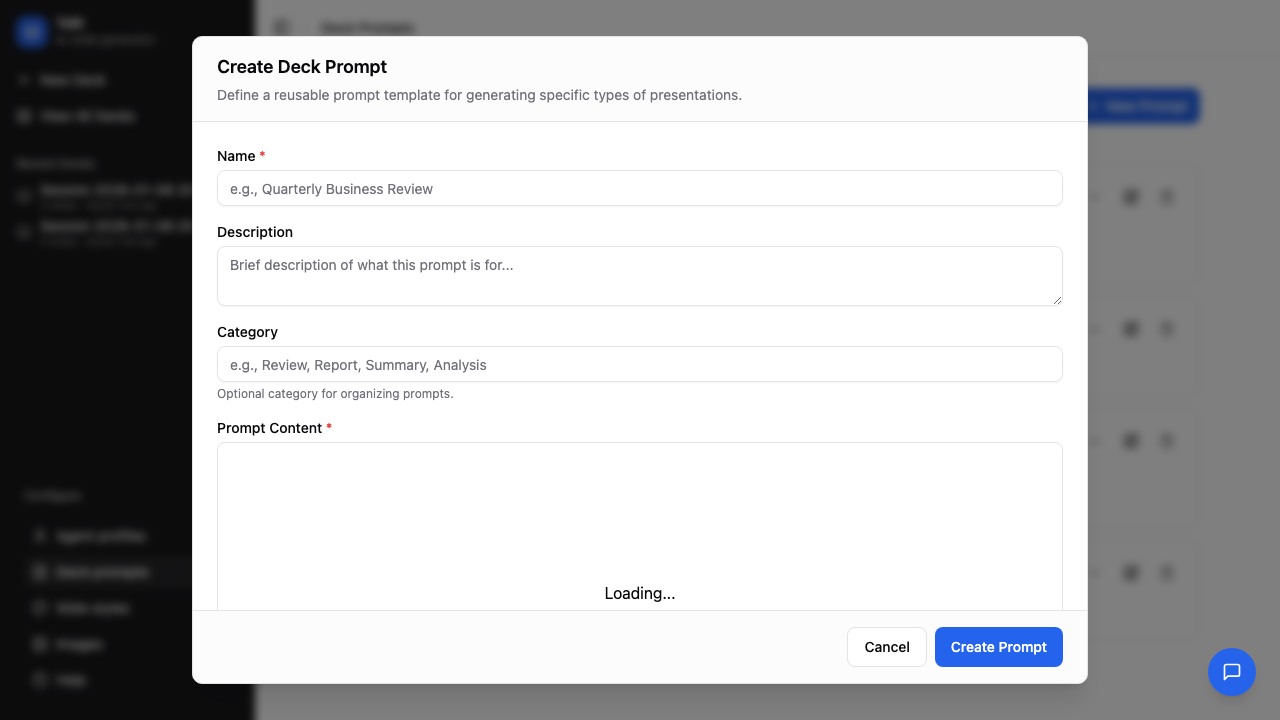
Step 04: Prompt Creation Form
The creation form includes:
- Name - Unique identifier (required)
- Description - What this prompt is for
- Category - Organizational grouping
- Content - The actual prompt instructions
Step 05: Fill In Details
Enter clear, descriptive information.
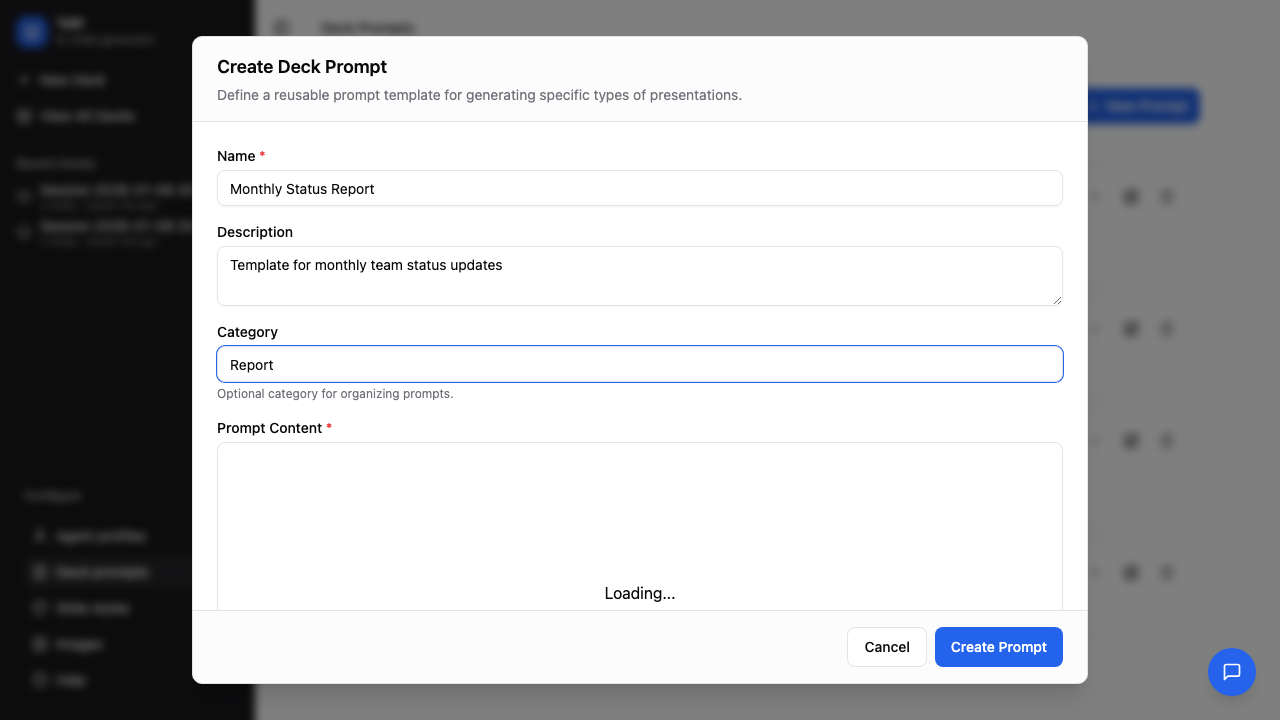
The prompt content should include what type of presentation to create, required sections, tone guidance, and data requirements.
Step 06: View Prompt Details
Click any prompt to view its full content.
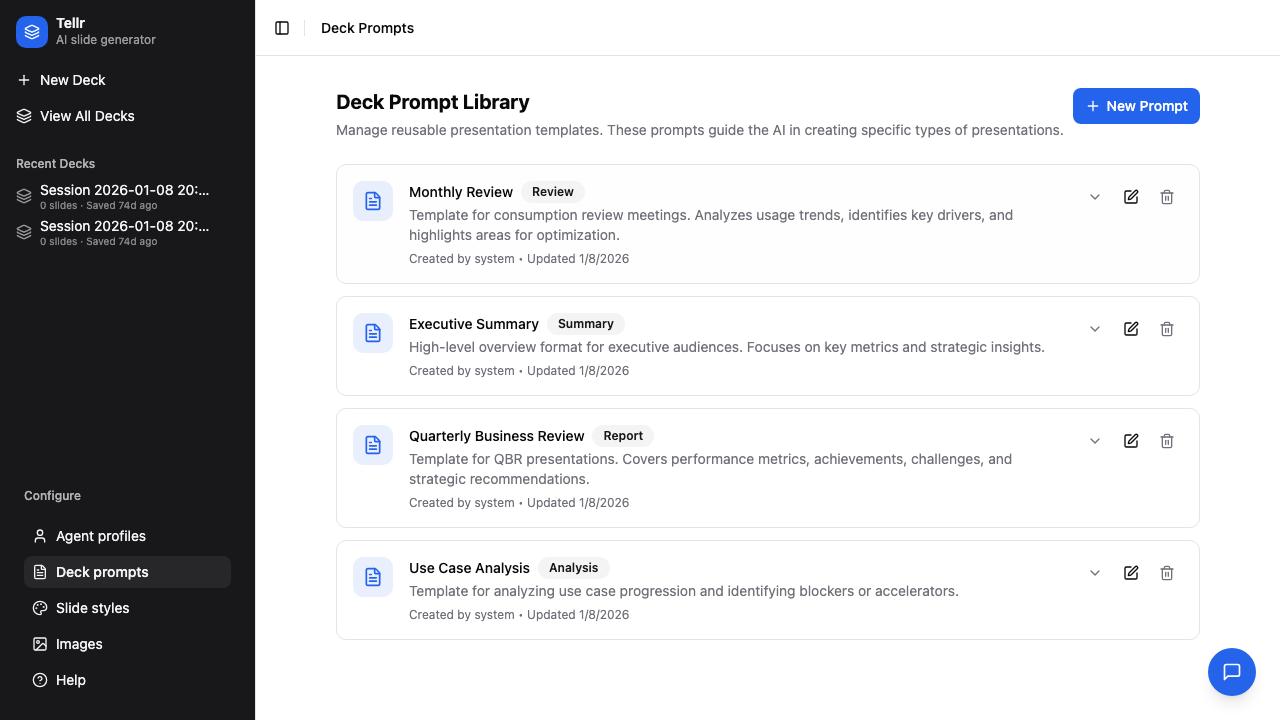
Step 07: System Prompts
System prompts are protected and cannot be edited. Use them as templates by duplicating.
Writing Effective Prompts
| Element | Purpose | Example |
|---|---|---|
| Structure | Define slide sequence | "Create 5 slides: title, overview, 3 data slides, summary" |
| Content focus | What to emphasize | "Focus on trends and year-over-year comparisons" |
| Audience | Adjust complexity | "Written for executive stakeholders" |
| Data requirements | What to query | "Include top 5 metrics by category" |
| Formatting | Visual guidance | "Use bullet points, limit to 4 per slide" |
Part 2: Slide Styles
Slide styles are CSS definitions that control how slides look.
Step 08: Navigate to Slide Styles
Click "Slide Styles" in the navigation bar.
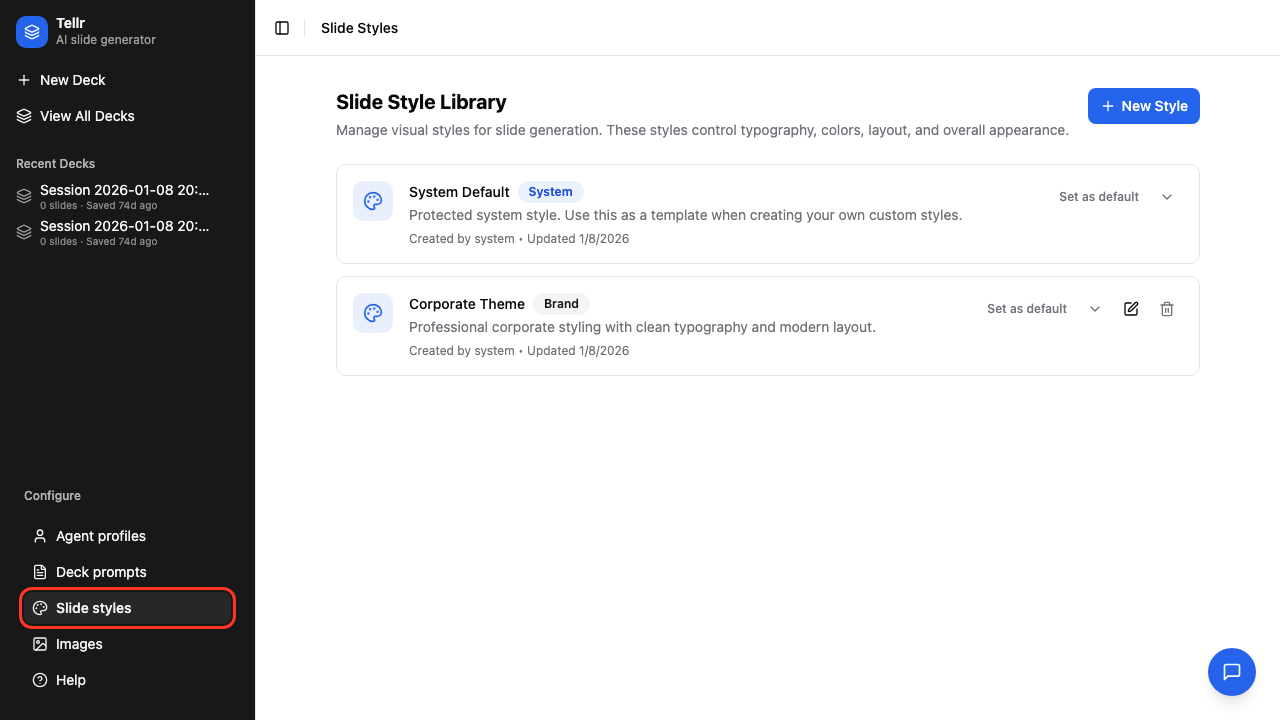
Step 09: Browse Available Styles
View existing styles with previews.
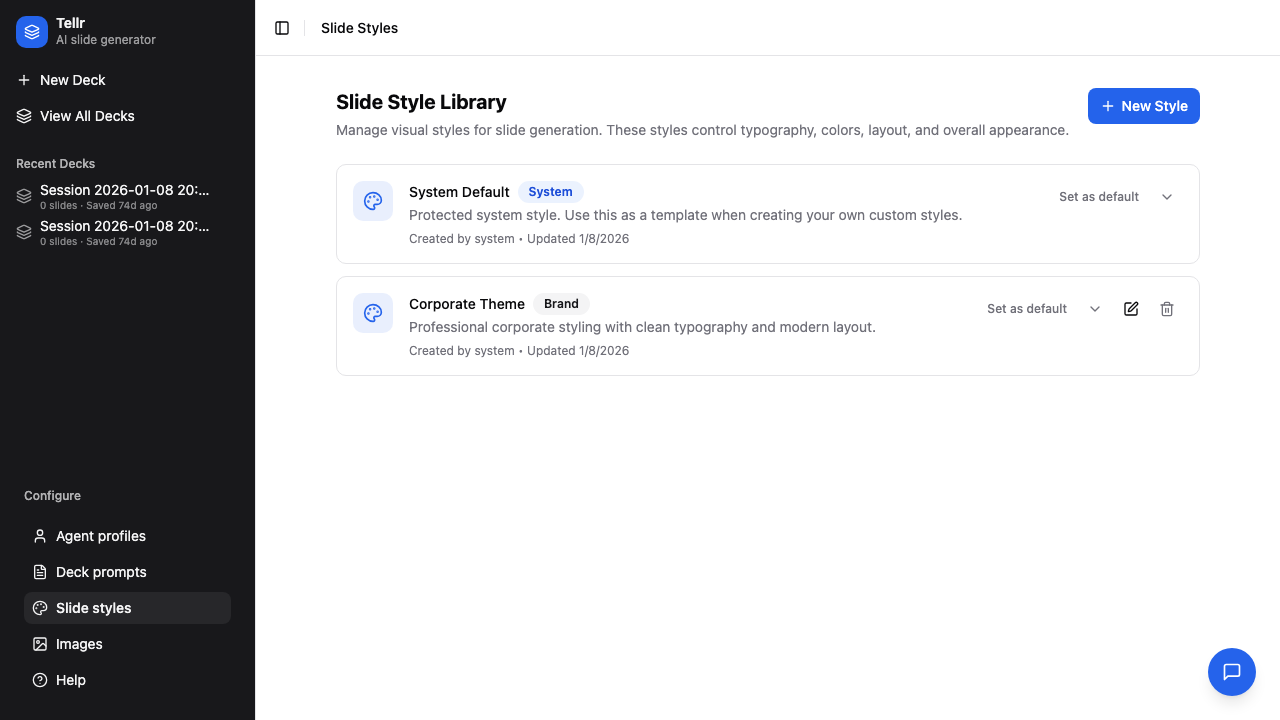
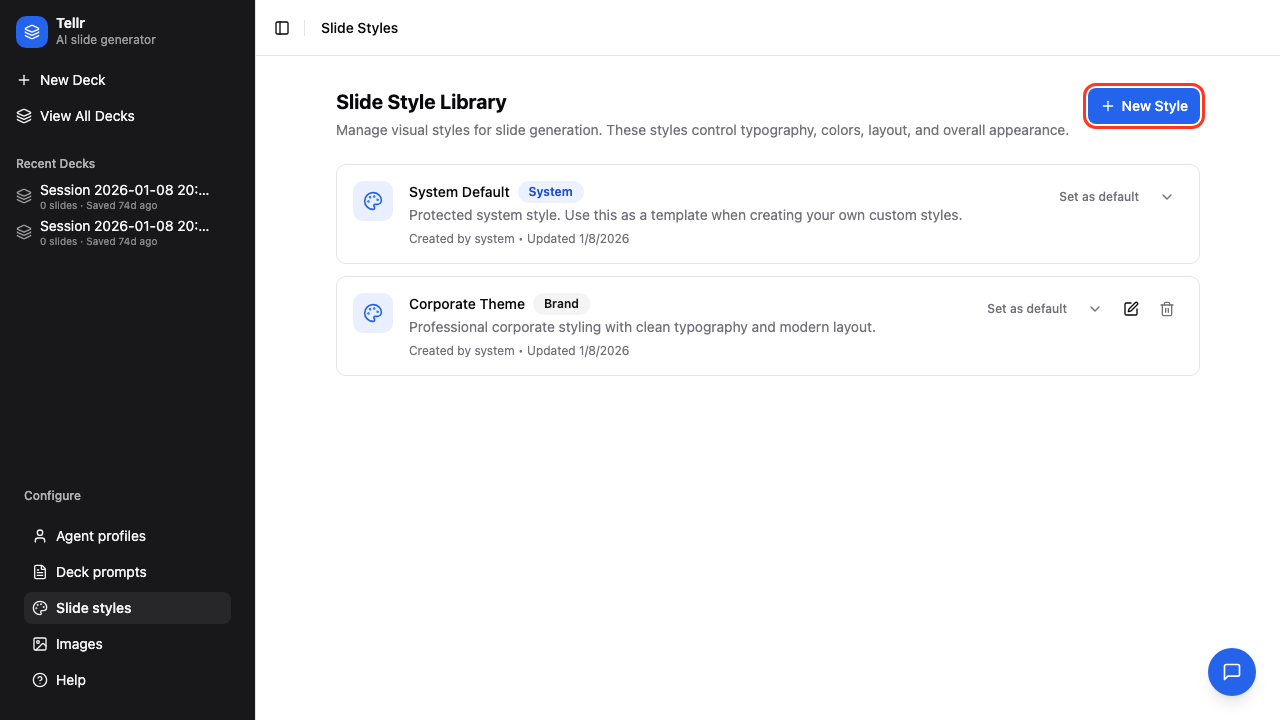
Step 10: Create New Style
Click "+ Create Style" to add a custom style.
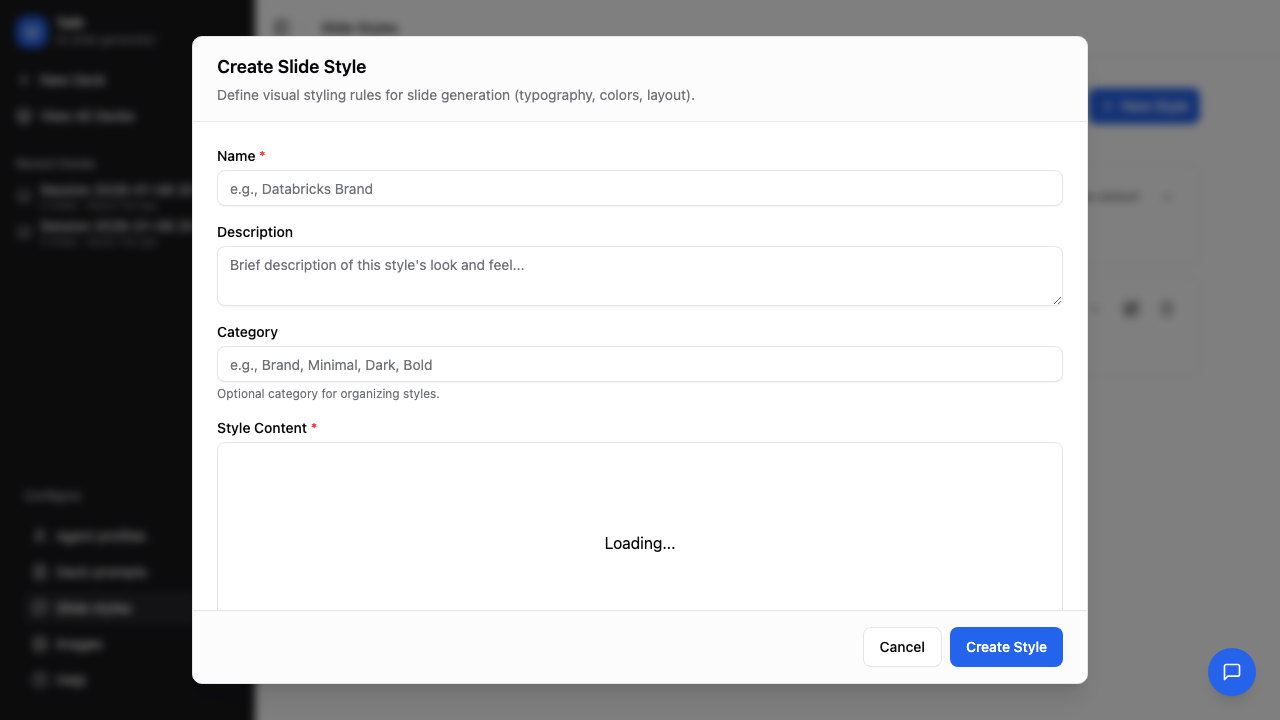
Step 11: Style Creation Form
Enter style metadata and CSS content.
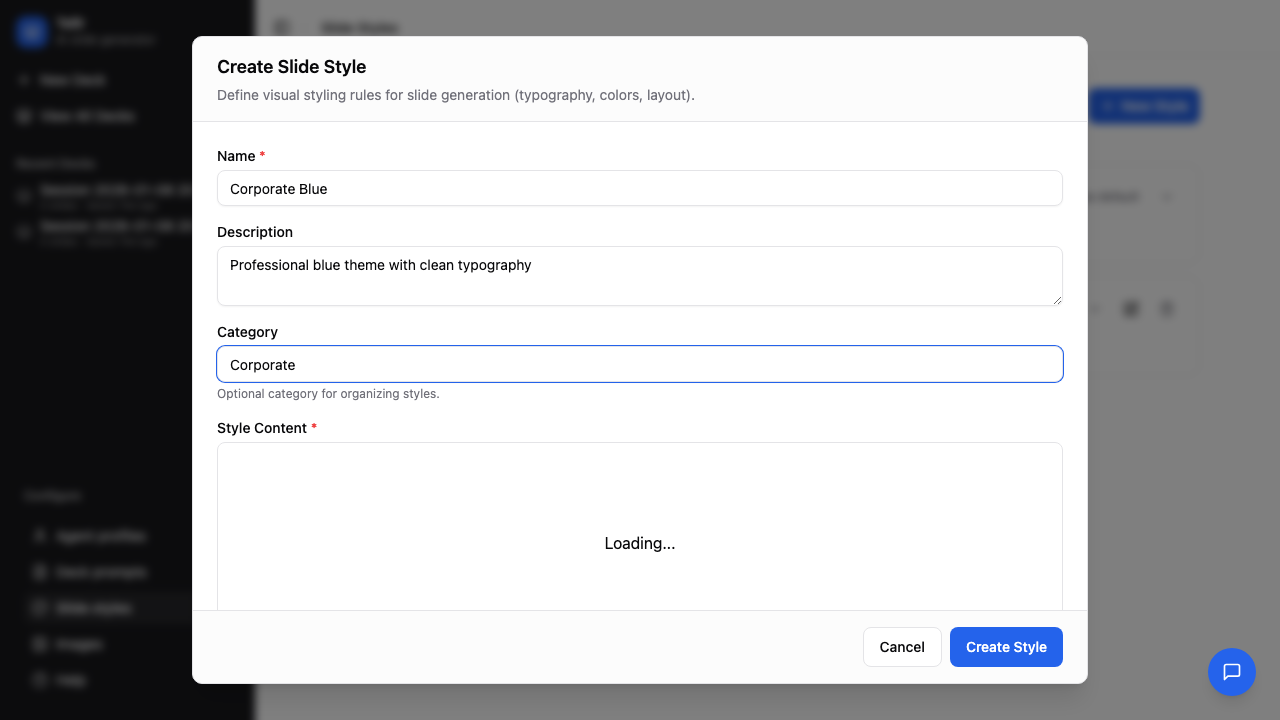
Step 12: Fill In Style Details
Provide a descriptive name and category.
Step 13: View System Styles
System styles serve as reference implementations.
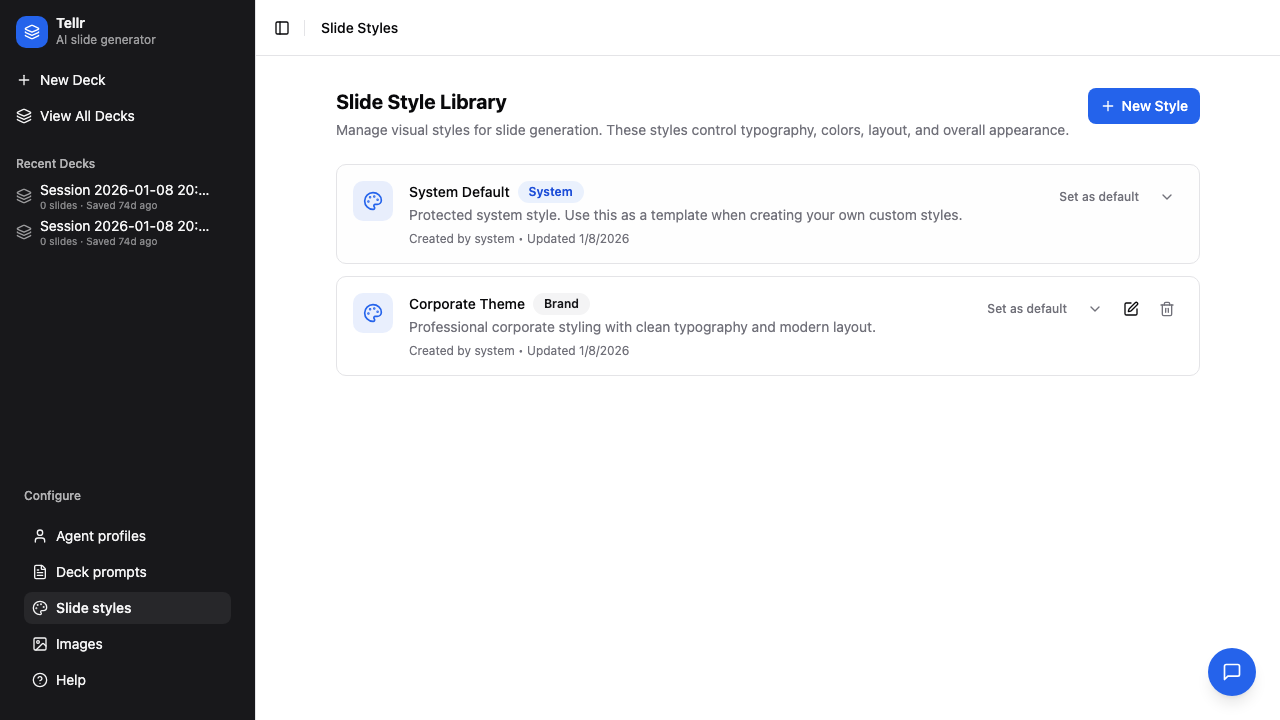
Step 14: Corporate Theme Style
The Corporate Theme style applies professional styling and typography.
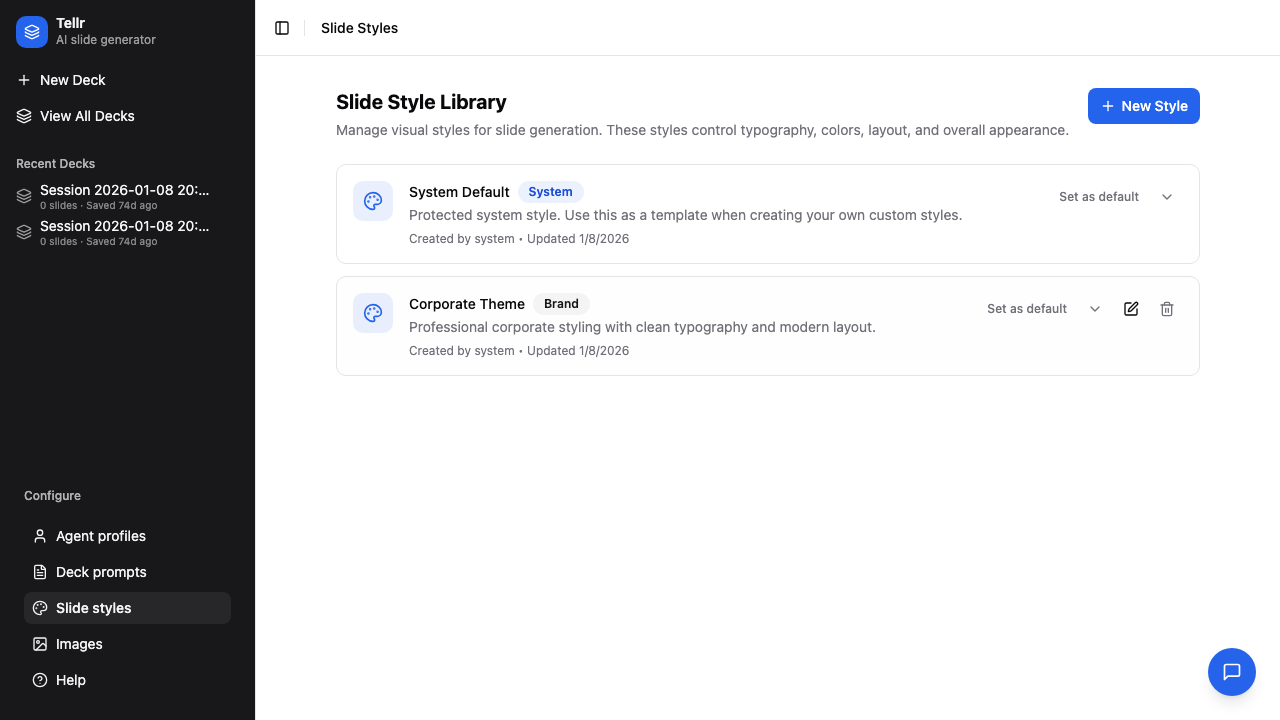
CSS Style Guidelines
A slide style can contain natural language guidance, raw CSS, or both. The AI reads the style and generates matching HTML and CSS.
Key points:
- Slides are rendered at a fixed 1280×720px canvas
- All CSS lives in a shared
<style>block across the entire deck - You can paste a complete stylesheet, use CSS variables, and
@importGoogle Fonts - Do not instruct the AI to use presentation frameworks (reveal.js, Slidev, etc.) or change the slide wrapper from
<div class="slide">
For a full reference on what CSS is safe to include, fixed constraints, and how to convert an existing template into a style, see Creating Custom Styles.
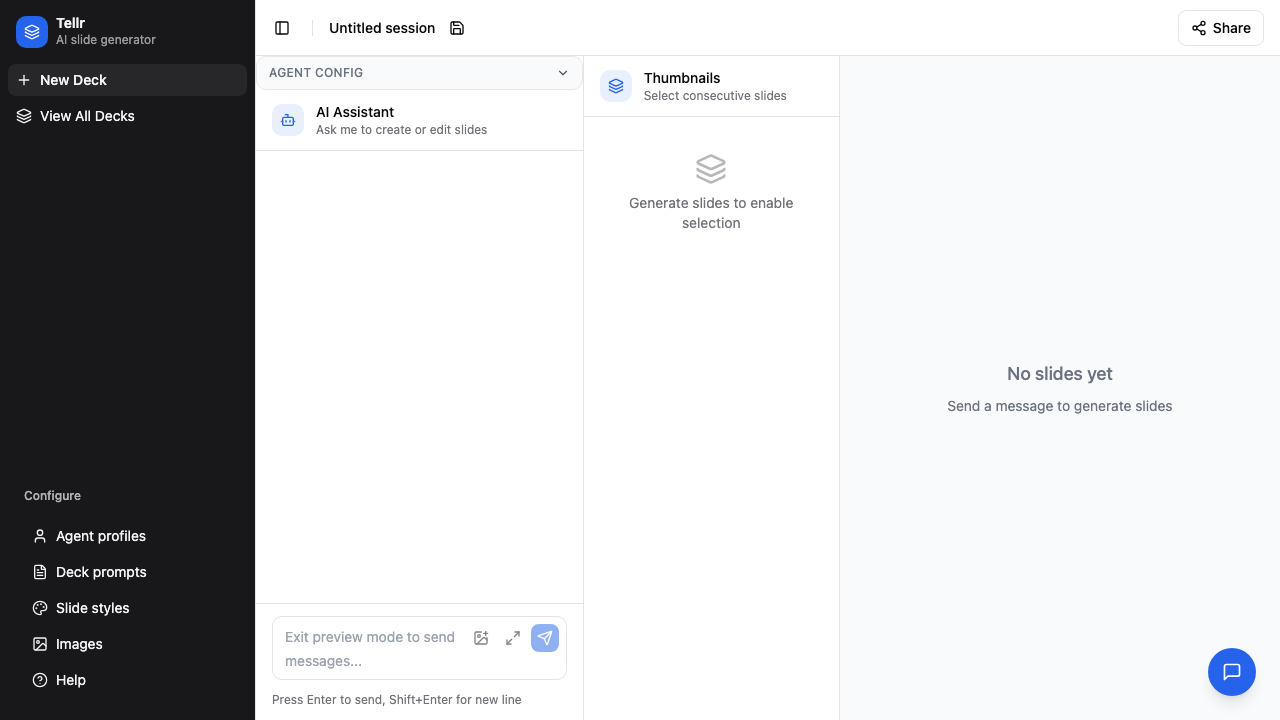
Step 15: Configuration Overview
All configuration pages are accessible from the main navigation.
System vs Custom Items
| Aspect | System Items | Custom Items |
|---|---|---|
| Editing | Not editable | Fully editable |
| Deletion | Cannot delete | Can delete |
| Duplication | Can duplicate | Can duplicate |
| Purpose | Reference templates | Your customizations |
Tips
- Start from system items: Duplicate a system prompt/style as a starting point
- Test iteratively: Create slides with your new configuration to verify results
- Use categories: Organize prompts and styles by use case or team
- Document changes: Use descriptions to note what's customized
Related Guides
- Generating Slides - Use your custom configuration
- Saving and Loading Configurations - Save and reuse configuration snapshots